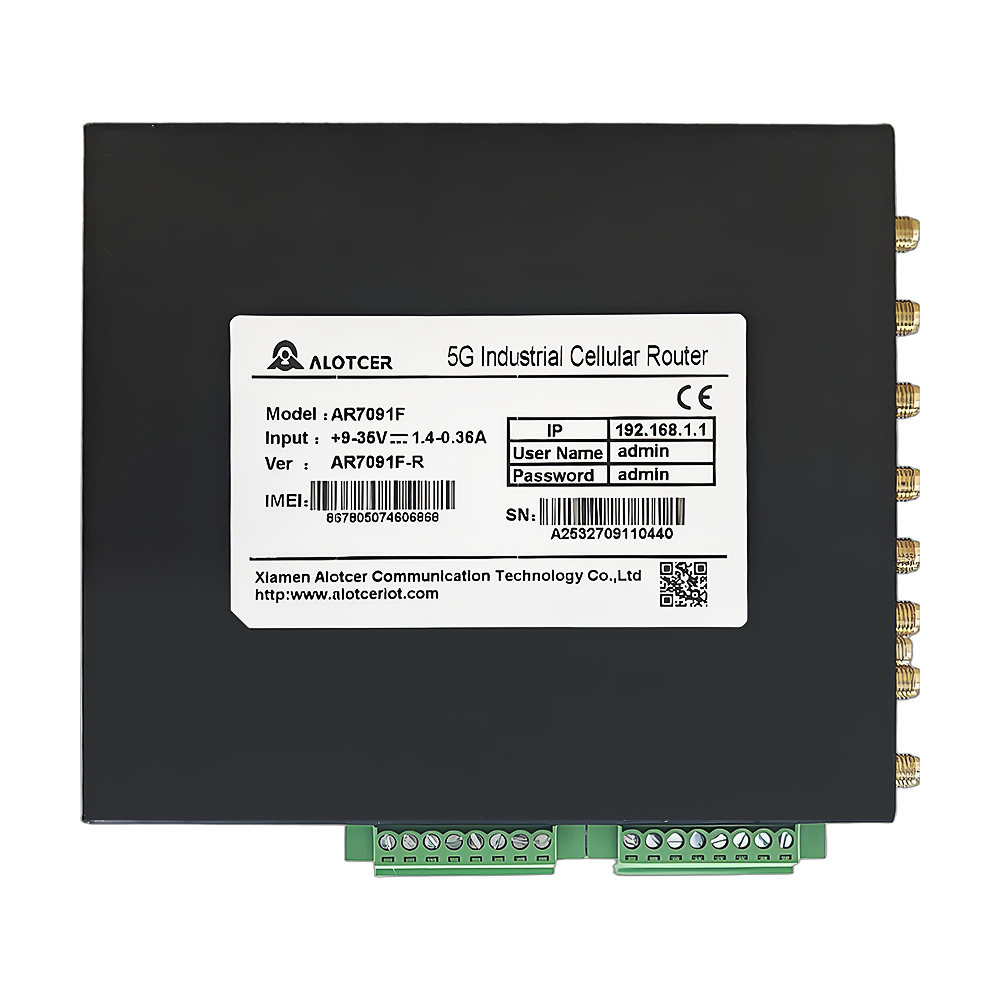
Topology Diagram

1. OpenVPN Software Download and Installation
Software Download
You can consult Alotcer 5G Industrial Gateway/Router technical personnel (seo@alotcer.com) for the installation package of the OPENVPN server. There is a strong demand for IoT network security. The VPN networking solution based on 5G Industrial VPN Gateway/Router is more flexible and convenient. However, traditional VPN solutions are costly and technically challenging. Therefore, the low-cost self-built OPENVPN solution based on Windows is favored by users, addressing the network security needs of many small and medium-sized projects. The stable and reliable 5G Industrial Gateway/Router plays a crucial role in the solution.
Software Installation
The OpenVPN software server and client both use the same installation package. For this demonstration, we will install the server on Windows and include the certificate generation tool, EasyRSA3. We will be using OpenVPN version 2.5.7 for the installation.
During the installation, choose ‘Customize’ and select ‘OpenVPN service’ and ‘EasyRSA3’ for server configuration and certificate generation purposes.

Remember to change the default installation location to a non-C drive, as it may affect the subsequent certificate generation. For this installation, we will be using the D drive.


After installation, the software will be located in the D:\OpenVPN directory.

2. Certificate and Key Generation
(This example is for the version without a password. For the version with a password, please contact Alotcer technical support)
Prepare the CA (Certificate Authority) issuing environment.
In the directory “D:\OpenVPN\easy-rsa”, copy the file named “vars.example” to a file named “vars”. The “vars” file contains built-in Easy-RSA configuration settings. Subsequent certificate generation will follow the configuration specified in that file.
The main parameters to be modified are as follows:


After making the changes, save the file. Double-click on the “EasyRSA-Start.bat” file to enter the EasyRSA shell environment in the DOS window. In the pop-up DOS window, type “./easyrsa init-pki” to initialize the certificate generation program. Once the initialization is successful, a new folder named “kpi” will be created in the “D:\OpenVPN\easy-rsa” directory, as shown in the following illustration:

Generate the public CA certificate
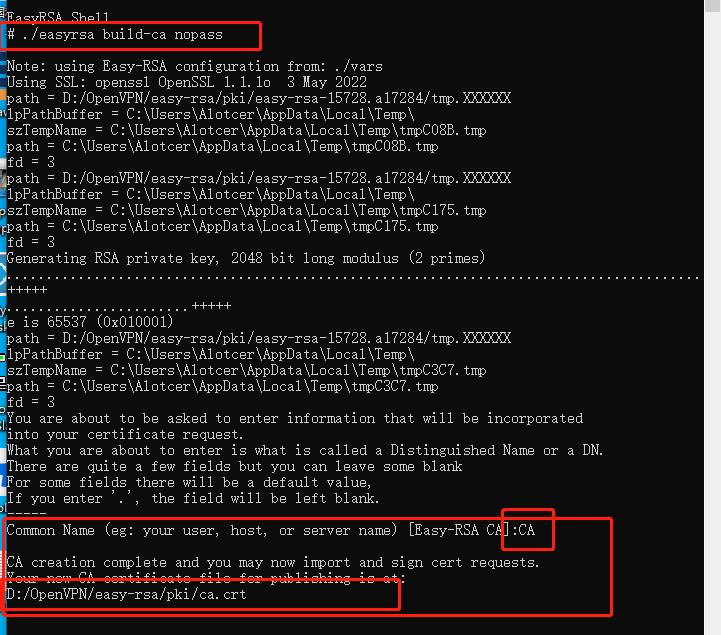
In the DOS window, type “./easyrsa build-ca nopass” to generate a CA certificate without a password. During the generation process, you will be prompted to enter a certificate name. You can enter any name you like; for this instance, we’ll use “CA” as the name. After the generation is complete, the certificate will be located at “D:\OpenVPN\easy-rsa\pki\ca.crt”.
To generate the server certificate and key:
Enter ‘./easyrsa build-server-full server nopass’ to generate a passwordless server certificate named ‘server’. After generation, the certificate file will be located in the ‘D:\OpenVPN\easy-rsa\pki\issued’ folder.

Generate Client Certificate Key
Enter ‘./easyrsa build-client-full client nopass’ to generate a passwordless client certificate named ‘client’. After generation, the certificate will be located in the ‘D:\OpenVPN\easy-rsa\pki\issued’ folder.

To add another client in the future, simply double-click on the EasyRSA-Start.bat file, and directly input ‘./easyrsa build-client-full client2 nopass’. No further action is required. The highlighted portion represents the corresponding certificate name, distinguishing different clients, ensuring one machine per certificate. As shown in the image below:

Generate Diffie-Hellman Key Exchange Protocol
Enter ‘./easyrsa gen-dh’ to generate the Diffie-Hellman key exchange protocol file. The generated file will be located in the ‘D:\OpenVPN\easy-rsa\pki’ directory.

The certificate key files are located under the directory ‘D:\OpenVPN\easy-rsa\pki\private’.

3. Configuration of the Windows Server
To set up an OpenVPN server, you need a public IP address or a fixed IP address in a private network environment. You can set it up on a router with OpenVPN server functionality or on a Windows computer with port forwarding enabled. This demonstration is for setting up on a computer.
(The example is for UDP mode. If you need TCP mode, refer to the appendix for detailed instructions on configuring the OpenVPN server-side file, or consult our technical support.)
Modify Server Configuration File
The server configuration file template is ‘server.ovpn’, located in the ‘D:\OpenVPN\sample-config’ directory. Copy the ‘server.ovpn’ file to the ‘D:\OpenVPN\config’ directory, and open it using Notepad, a built-in Windows application, to modify it with the following configuration:

The image below serves as a caption. For detailed comments on other configurations, please refer to the appendix for a comprehensive explanation of the OpenVPN server-side configuration file.

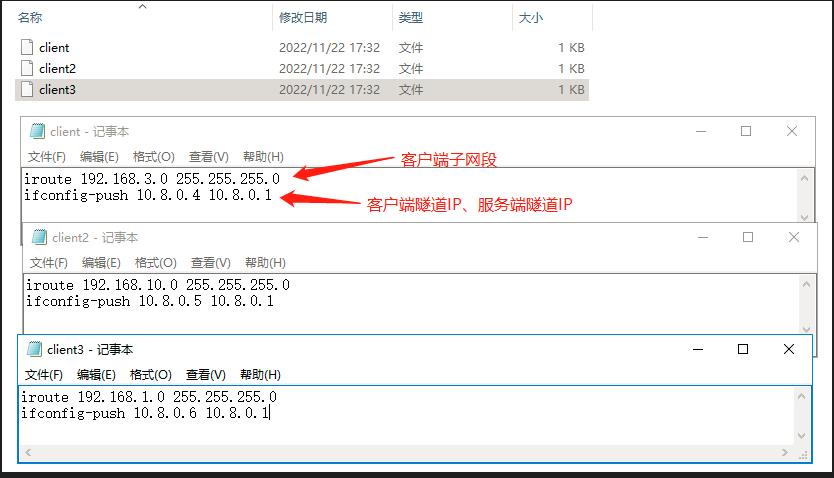
Create a ‘ccd’ folder in the ‘D:\OpenVPN\config’ directory. Within this folder, create files without extensions, with each file name corresponding to a client certificate name. Inside the files, input the subnet range and specify the tunnel IP as shown in the image below:
Copy the certificates into the configuration
Copy the server certificate, server key, CA certificate, and DH file into the ‘D:\OpenVPN\config’ folder.

Share network to the VPN virtual adapter.

Connect

Right-click on the small computer icon with a lock in the taskbar, then click ‘Connect’. Once the connection is successful, it will turn green, and the system will prompt for IP assignment.
4. 5G OPENVPN Industrial Gateway/ Industrial Router Client Configuration
Import client key, client certificate, and CA certificate
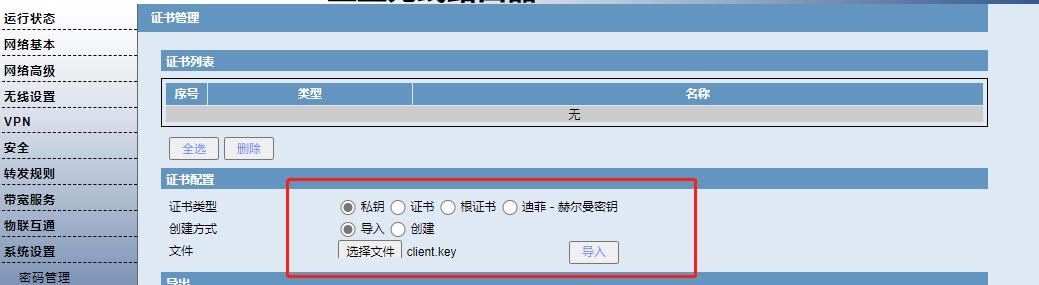


Configure as shown in the image below

Local time synchronization for 5G Industrial OPENVPN gateway/router is crucial. Mismatched time between client and server can result in communication issues.

Verification
Alotcer 5G Industrial OPENVPN Gateway/Router Connected Successfully Status

Server pings client subnet

Client pings server subnet

Achieve seamless and secure connectivity as well as subnet interaction between multiple Alotcer 5G Industrial OPENVPN gateways/routers and a self-hosted Windows OPENVPN server.